Santronics Software, Inc.,
Wildcat! SSL Signed Certificate Installation Instructions
Wildcat! Tools Required:
Wildcat! offers the following easy to use GUI configuration tools and a GUI wizard to create, install and manage your SSL certificate and setup. No manual OPENSSL configuration is required.
- WCCONFIG (Wildcat! Configuration)
- WCSSLCONFIG (Wildcat! SSL Configuration)
WCSSLCONFIG can be run directly or from within the WCCONFIG control panel using the icon labeled "SSL Setup." If you don't see the icon "SSL Setup," check to see if you have the WCSSLCONFIG utility in your Wildcat! installation folder. If missing, you may be licensed to use use the SSL version of Wildcat! v5.6. (Wildcat! SSL is an add-on product in v5.6)
Installation of Signed Certificate:
Your CA vendor will deliver your signed certificate usually via EMAIL and/or via their Web Site. It can be a text file attachment and/or a block of data which you can copy into memory. Once you receive the signed certificate proceed with the following steps to install the signed certificate:
Step 1: Installation of trusted signed certificate:
Start WCCONFIG and click the icon "SSL Setup" or run WCSSLCONFIG directly, then start the Server Certificate Wizard.
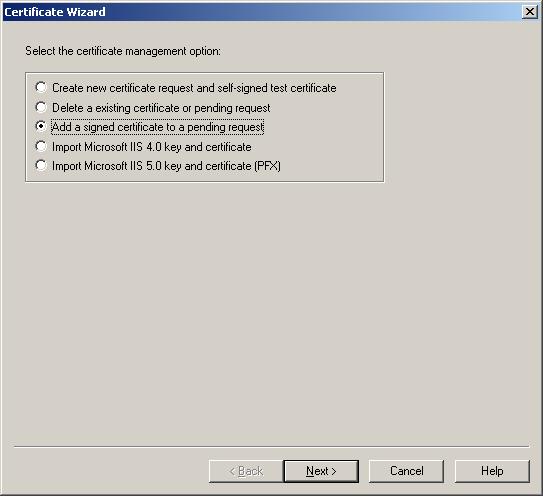
Step 7: Select the option "Add a signed certificate to a pending request" and click the Next button.
This will present the Certificate Request Store:
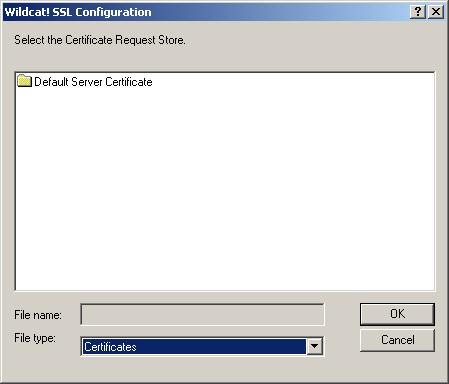
A list of all certificates requested will be presented. You should see the "Friendly Name" used for the CSR created in the CSR creation steps.
Step 2: Select the CSR and click OK:
The following dialog is present allowing you enter the sign certificate information sent to you by the CA vendor.
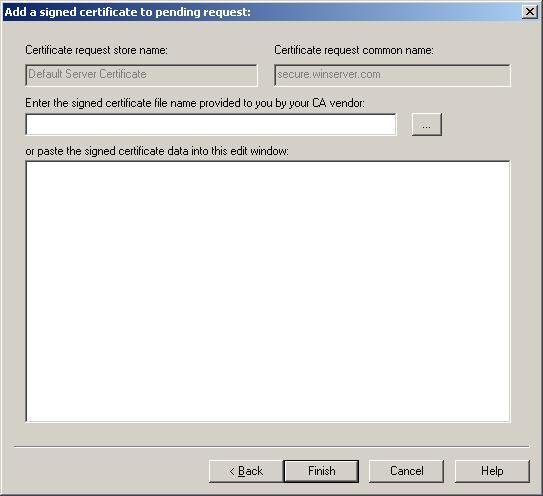
You have the option to enter the signed certificate information one of two ways depending on how the CA vendor sent the signed certificate to you. If the certificate was provided to you as a text file attachment, you can save the file on disk and then provide the file name in the provided file name field in the above dialog. Alternatively, if the signed certificate was provided to you as a block of data, you can copy the information and paste it into the provided space in the above dialog.
Once this information is provided, click the FINISH button.
If the signed certificate matches the CSR information, the installation is successful. The signed certificate is saved and installed for Wildcat! SSL operations.
If the signed certificate does not match the CSR information, you will be presented with the reason, such as "common name" or password mismatch.