Santronics Software, Inc.,
Wildcat! SSL Certificate Request (CSR) Generation Instructions
Wildcat! Tools Required:
Wildcat! offers the following easy to use GUI configuration tools and a GUI wizard to create, install and manage your SSL certificate and setup. No manual OPENSSL configuration is required.
- WCCONFIG (Wildcat! Configuration)
- WCSSLCONFIG (Wildcat! SSL Configuration)
WCSSLCONFIG can be run directly or from within the WCCONFIG control panel using the icon labeled "SSL Setup." If you don't see the icon "SSL Setup," check to see if you have the WCSSLCONFIG utility in your Wildcat! installation folder. If missing, you may be licensed to use use the SSL version of Wildcat! v5.6. (Wildcat! SSL is an add-on product in v5.6)
Generating a Certificate Request (CSR) using WCSSLCONFIG
On the CA Vendor web site, an SSL certificate enrollment procedure is provided to obtain a time limted test SSL certificate or for purchasing a SSL certificate. In all cases, at some point during the enrollment, they will ask to provide a CSR (Certificate Request). This CSR is created by you using the Server Certificate Wizard in the Wildcat! SSL configuration tool.
So you have two choices on how to begin the process of providing the CSR:
- You can start the enrollment process, reach the section of the enrollment where the CSR
is request at which point you start with step 1 below, or
- You start with step 1 and when you create the CSR, you start your web browser to begin the CA vendor enrollment process.
The Enrollment page can be found at:
http://www.verisign.com/products/site/secure/index.html
Either way, the CSR must be generated and sent to the CA vendor.
Step 1: Start WCCONFIG and click on "SSL Setup" or run WCSSLCONFIG directly:
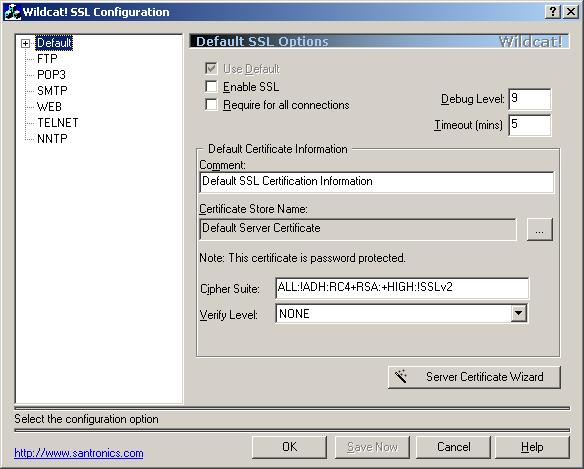
By default, Wildcat! will use a default SSL certificate for all the listed servers (please note, NNTP is listed by is not currently supported for SSL operations).
Your CA vendor may require a specific SSL certificate for each server or the CA may offer a single multi-server SSL certificate. Check with the CA for their product offerings.
Step 2: Click on the Server Certificate Wizard
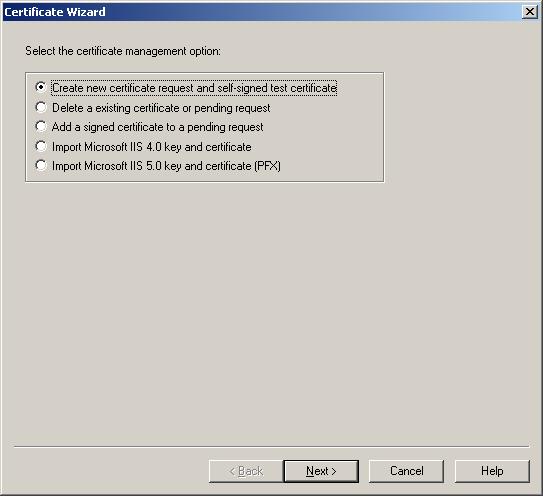
Step 3: Select the option "Create new certificate request and self-signed test
certificate" and click the Next button.
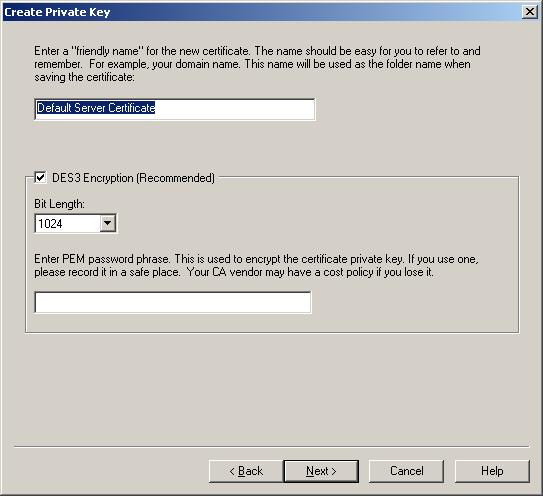
Enter a "friendly name" for this certificate that accurately describes this certificate.
Verisign requires that you use DES3 with a 1024 or higher bit length with also a secret PEM password. Select a password that you will remember. The CA vendor may require a fee if you lose the password.
Step 4: Enter the above information and click the Next button:
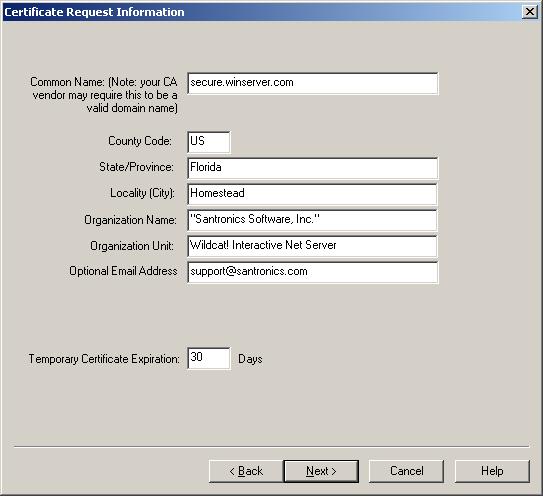
This part is very important. The information entered in the Certificate Request Information page will be encrypted and sent to the CA vendor as a CSR. The CA vendor may require that you re-enter this information in their SSL certificate purchase order application.
Each field is important however, the most important one is the Common Name field.
The common name is the domain name that you are protecting with a SSL certificate.
For example, when creating a certificate for the web server, www.santronics.com, the user will type or click an URL such as:
https://www.santronics.com/
to begin the process of an SSL secured section. (note the s character in https).
This means the common name must be www.santronics.com. If any other domain name is used to access your web page, the user's web browser will present a certificate invalid warning indicating the certificate "common name" and site domain name do not match.
So pick the common name appropriate with for your SSL operation. In addition, the CA vendor may require a particular common name format for purchasing a site or multi-server certificate. Contact your CA vendor about common names for multi-server certificates.
Other notes about the Certificate Request fields:
Current certificate standards require a full name for the State/Province. No abbreviation can be used for the State/Province.
For the company name, if there appears any commands or periods, support the company name with double quotes as shown above.
By default, the test certificate expiration days is 30 days. A self-signed test certificate will be created for you so that you can begin using your SSL system while your CSR is being processed by your vendor. The CA may have a different expiration amount.
Step 5: Once the Certificate Request Information is provided, click the Next button to begin the process of creating the CSR:
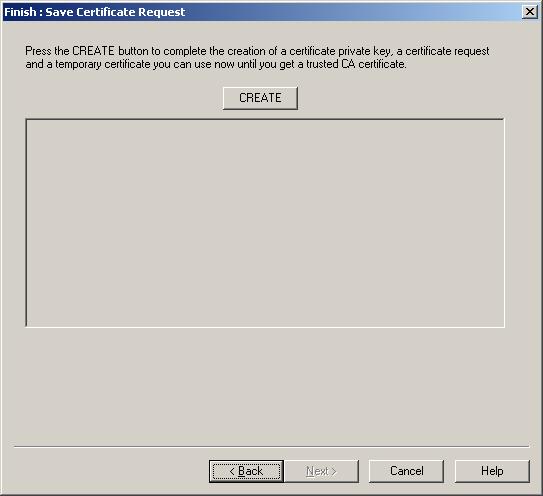
Step 6: Click the CREATE button and then press OK when the CSR is created.
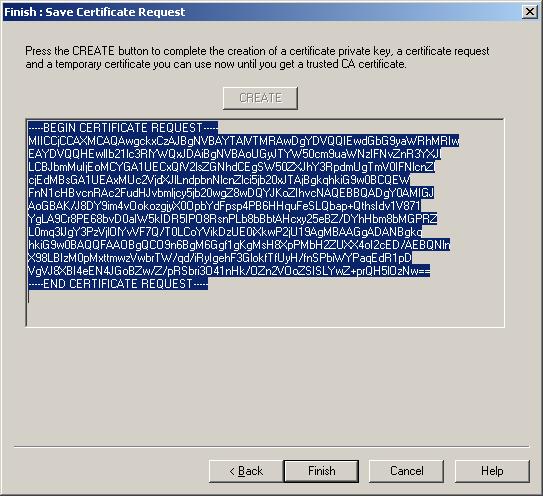
The highlighted block of information is the CSR which you must provide to your CA vendor. For convenience, the CSR is stored in your Copy/Cut/Paste buffer memory making it easy for you to paste it into your CA vendor Certificate Request input box.
If you have not started the enrollment process, at this point you should begin the process of ordering a certificate from the CA vendor following their enrollment procedures which will include a step which will ask you to PASTE the CSR generated into a Certificate Request (CSR) input box on their web site.
The entire block start with the top and bottom markers must be included in the CSR when sending it to the CA vendor.
The Enrollment page can be found at:
http://www.verisign.com/products/site/secure/index.html
Once you have received your trusted signed certificate from the CA vendor (which may take a few days or longer), you may proceed with the Wildcat! installation of your new signed certificate.